Showing posts with label 16x2 Character LCD. Show all posts

8051 4 Bit LCD Interfacing Tutorial


Click Here For Character LCD Basics


Lcd Library

The mikroC PRO for 8051 provides a library for communication with Lcds (with HD44780 compliant controllers) through the 4-bit interface. An example of Lcd connections is given on the schematic at the bottom of this page.
For creating a set of custom Lcd characters use Lcd Custom Character Tool.

External dependencies of Lcd Library

The following variables must be defined in all projects using Lcd Library :
Description :
Example :
extern sfr sbit LCD_RS:
Register Select line.
sbit LCD_RS at P2_0_bit;
extern sfr sbit LCD_EN:
Enable line.
sbit LCD_EN at P2_1_bit;
extern sfr sbit LCD_D7;
Data 7 line.
sbit LCD_D7 at P2_5_bit;
extern sfr sbit LCD_D6;
Data 6 line.
sbit LCD_D6 at P2_4_bit;
extern sfr sbit LCD_D5;
Data 5 line.
sbit LCD_D5 at P2_3_bit;
extern sfr sbit LCD_D4;
Data 4 line.
sbit LCD_D4 at P2_2_bit;

Library Routines

Lcd_Init

Prototype
void Lcd_Init();
Returns
Nothing.
Description
Initializes Lcd module.
Requires
Global variables:
  • LCD_D7: data bit 7
  • LCD_D6: data bit 6
  • LCD_D5: data bit 5
  • LCD_D4: data bit 4
  • RS: register select (data/instruction) signal pin
  • EN: enable signal pin
must be defined before using this function.
Example
// lcd pinout settings
 
sbit LCD_RS at P2_0_bit;
sbit LCD_EN at P2_1_bit;
sbit LCD_D7 at P2_5_bit;
sbit LCD_D6 at P2_4_bit;
sbit LCD_D5 at P2_3_bit;
sbit LCD_D4 at P2_2_bit;
 
...
 
Lcd_Init();

Lcd_Out

Prototype
void Lcd_Out(char row, char column, char *text);
Returns
Nothing.
Description
Prints text on Lcd starting from specified position. Both string variables and literals can be passed as a text.
Parameters :
  • row: starting position row number
  • column: starting position column number
  • text: text to be written
Requires
The Lcd module needs to be initialized. See Lcd_Init routine.
Example
// Write text "Hello!" on Lcd starting from row 1, column 3:
Lcd_Out(1, 3, "Hello!");

Lcd_Out_CP

Prototype
void Lcd_Out_Cp(char *text);
Returns
Nothing.
Description
Prints text on Lcd at current cursor position. Both string variables and literals can be passed as a text.
Parameters :
  • text: text to be written
Requires
The Lcd module needs to be initialized. See Lcd_Init routine.
Example
// Write text "Here!" at current cursor position:
Lcd_Out_CP("Here!");

Lcd_Chr

Prototype
void Lcd_Chr(char row, char column, char out_char);
Returns
Nothing.
Description
Prints character on Lcd at specified position. Both variables and literals can be passed as a character.
Parameters :
  • row: writing position row number
  • column: writing position column number
  • out_char: character to be written
Requires
The Lcd module needs to be initialized. See Lcd_Init routine.
Example
// Write character "i" at row 2, column 3:
Lcd_Chr(2, 3, 'i');

Lcd_Chr_CP

Prototype
void Lcd_Chr_Cp(char out_char);
Returns
Nothing.
Description
Prints character on Lcd at current cursor position. Both variables and literals can be passed as a character.
Parameters :
  • out_char: character to be written
Requires
The Lcd module needs to be initialized. See Lcd_Init routine.
Example
// Write character "e" at current cursor position:
Lcd_Chr_CP('e');

Lcd_Cmd

Prototype
void Lcd_Cmd(char out_char);
Returns
Nothing.
Description
Sends command to Lcd.
Parameters :
  • out_char: command to be sent
Note: Predefined constants can be passed to the function, see Available Lcd Commands.
Requires
The Lcd module needs to be initialized. See Lcd_Init table.
Example
// Clear Lcd display:
Lcd_Cmd(_LCD_CLEAR);

Available Lcd Commands

Lcd Command
Purpose
_LCD_FIRST_ROW
Move cursor to the 1st row
_LCD_SECOND_ROW
Move cursor to the 2nd row
_LCD_THIRD_ROW
Move cursor to the 3rd row
_LCD_FOURTH_ROW
Move cursor to the 4th row
_LCD_CLEAR
Clear display
_LCD_RETURN_HOME
Return cursor to home position, returns a shifted display to its original position. Display data RAM is unaffected.
_LCD_CURSOR_OFF
Turn off cursor
_LCD_UNDERLINE_ON
Underline cursor on
_LCD_BLINK_CURSOR_ON
Blink cursor on
_LCD_MOVE_CURSOR_LEFT
Move cursor left without changing display data RAM
_LCD_MOVE_CURSOR_RIGHT
Move cursor right without changing display data RAM
_LCD_TURN_ON
Turn Lcd display on
_LCD_TURN_OFF
Turn Lcd display off
_LCD_SHIFT_LEFT
Shift display left without changing display data RAM
_LCD_SHIFT_RIGHT
Shift display right without changing display data RAM

Code

The following code demonstrates usage of the Lcd Library routines:


// Lcd module connections
sbit LCD_RS at P2_0_bit;
sbit LCD_EN at P2_1_bit;

sbit LCD_D4 at P2_2_bit;
sbit LCD_D5 at P2_3_bit;
sbit LCD_D6 at P2_4_bit;
sbit LCD_D7 at P2_5_bit;
// End Lcd module connections

char txt1[] = "Embedded";
char txt2[] = "Projects";
char txt3[] = "Lcd 4 bit";
char txt4[] = "Tutorial";

char i;                              // Loop variable

void Move_Delay() {                  // Function used for text moving
  Delay_ms(500);                     // You can change the moving speed here
}

void main(){

  Lcd_Init();                        // Initialize Lcd

  Lcd_Cmd(_LCD_CLEAR);               // Clear display
  Lcd_Cmd(_LCD_CURSOR_OFF);          // Cursor off
  Lcd_Out(1,6,txt3);                 // Write text in first row

  Lcd_Out(2,6,txt4);                 // Write text in second row
  Delay_ms(2000);
  Lcd_Cmd(_LCD_CLEAR);               // Clear display

  Lcd_Out(1,1,txt1);                 // Write text in first row
  Lcd_Out(2,5,txt2);                 // Write text in second row

  Delay_ms(2000);

  // Moving text
  for(i=0; i<4; i++) {               // Move text to the right 4 times
    Lcd_Cmd(_LCD_SHIFT_RIGHT);
    Move_Delay();
  }

  while(1) {                         // Endless loop
    for(i=0; i<8; i++) {             // Move text to the left 7 times
      Lcd_Cmd(_LCD_SHIFT_LEFT);
      Move_Delay();
    }

    for(i=0; i<8; i++) {             // Move text to the right 7 times
      Lcd_Cmd(_LCD_SHIFT_RIGHT);
      Move_Delay();
    }
  }
}


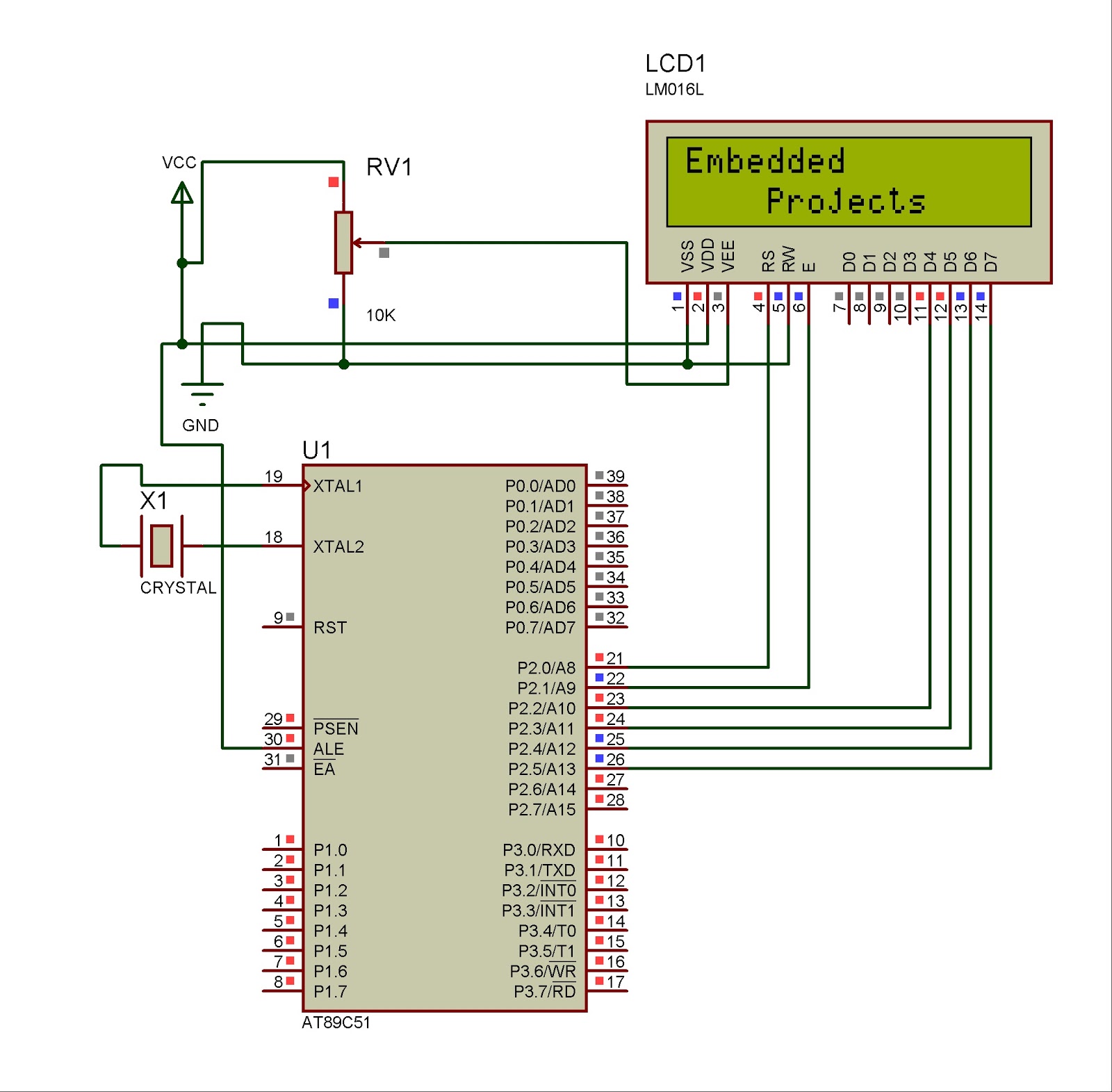
Circuit


Electronic Voting Machine Using 8051 Microcontroller (AT89C51)

89C51 Based Digital Thermometer Using DS1820


Introduction
The hardware configuration when using multiple 1-Wire temperature sensors like the DS1820 is very simple, as illustrated in the block diagram below. A single-wire bus is used for communication between the microcontroller and the temperature sensor. It is also possible to power the devices direclty via this 1-Wire bus. An almost unlimited number of 1-WireTM devices can be connected to the bus because each device has a unique 64-bit ROM code identifier which is used to address each sensor


Temperature measurement using DS1820 sensor. Use of ‘1-wire’ protocol...
Temperature measurement is one of the most common tasks performed by the microcontroller. A DS1820 sensor is used for measurement here. It is capable of measuring temperature in the range of -55 °C to 125 °C with 0.5 °C accuracy. For the purpose of transferring data to the microcontroller, a special type of serial communication called 1-wire is used.

Due to a simple and wide use of these sensors, commands used to run and control them are in the form of functions stored in the One_Wire library. There are three functions in total:
  • Ow_Reset is used for reseting sensor;
  • Ow_Read is used for receiving data from sensor; and
  • Ow_Write is used for sending commands to sensor.
Concretely, you don’t have to study documentation provided by the manufacturer in order to use this sensor. It is sufficient to copy some of these functions in the program.


OneWire Library
The OneWire library provides routines for communication via the Dallas OneWire protocol, e.g. with DS18x20 digital thermometer. OneWire is a Master/Slave protocol, and all communication cabling required is a single wire. OneWire enabled devices should have open collector drivers (with single pull-up resistor) on the shared data line.
Slave devices on the OneWire bus can even get their power supply from data line. For detailed schematic see device datasheet.
Some basic characteristics of this protocol are:
  • single master system,
  • low cost,
  • low transfer rates (up to 16 kbps),
  • fairly long distances (up to 300 meters),
  • small data transfer packages.
Each OneWire device has also a unique 64-bit registration number (8-bit device type, 48-bit serial number and 8-bit CRC), so multiple slaves can co-exist on the same bus.
Note: Oscillator frequency Fosc needs to be at least 8MHz in order to use the routines with Dallas digital thermometers.
External dependencies of OneWire Library
This variable must be defined in any project that is using OneWire Library:
Description:
Example :
extern sfr sbit bdata OW_Bit;
OneWire line.
sbit OW_Bit at P2_7_bit;
Library Routines
Ow_Reset
Prototype
unsigned short Ow_Reset();
Returns
  • 0 if the device is present
  • 1 if the device is not present
Description
Issues OneWire reset signal for DS18x20.
Parameters :
  • None.
Requires
Devices compliant with the Dallas OneWire protocol.
Global variable OW_Bit must be defined before using this function.
Example
// Issue Reset signal on One-Wire Bus
Ow_Reset();
Ow_Read
Prototype
unsigned short Ow_Read();
Returns
Data read from an external device over the OneWire bus.
Description
Reads one byte of data via the OneWire bus.
Requires
Devices compliant with the Dallas OneWire protocol.
Global variable OW_Bit must be defined before using this function.
Example
// Read a byte from the One-Wire Bus
unsigned short read_data;
...
read_data = Ow_Read();
Ow_Write
Prototype
void Ow_Write(char par);
Returns
Nothing.
Description
Writes one byte of data via the OneWire bus.
Parameters :
  • par: data to be written
Requires
Devices compliant with the Dallas OneWire protocol.
Global variable OW_Bit must be defined before using this function.
Example
// Send a byte to the One-Wire Bus
Ow_Write(0xCC);
Circuit


Code
This example reads the temperature using DS18x20 connected to pin P1.2. After reset, MCU obtains temperature from the sensor and prints it on the Lcd. Make sure to pull-up P1.2 line and to turn off the P1 leds.
// LCD module connections
sbit LCD_RS at P2_0_bit;
sbit LCD_EN at P2_1_bit;

sbit LCD_D4 at P2_2_bit;
sbit LCD_D5 at P2_3_bit;
sbit LCD_D6 at P2_4_bit;
sbit LCD_D7 at P2_5_bit;
// End LCD module connections

// OneWire pinout
sbit OW_Bit at P1_2_bit;
// end OneWire definition


//  Set TEMP_RESOLUTION to the corresponding resolution of used DS18x20 sensor:
//  18S20: 9  (default setting; can be 9,10,11,or 12)
//  18B20: 12
const unsigned short TEMP_RESOLUTION = 9;

char *text = "000.0000";
unsigned temp;

void Display_Temperature(unsigned int temp2write) {
  const unsigned short RES_SHIFT = TEMP_RESOLUTION - 8;
  char temp_whole;
  unsigned int temp_fraction;

  // check if temperature is negative
  if (temp2write & 0x8000) {
    text[0] = '-';
    temp2write = ~temp2write + 1;
  }

  // extract temp_whole
  temp_whole = temp2write >> RES_SHIFT ;

  // convert temp_whole to characters
  if (temp_whole/100)
     text[0] = temp_whole/100  + 48;
  else
     text[0] = '0';

  text[1] = (temp_whole/10)%10 + 48;             // Extract tens digit
  text[2] =  temp_whole%10     + 48;             // Extract ones digit

  // extract temp_fraction and convert it to unsigned int
  temp_fraction  = temp2write << (4-RES_SHIFT);
  temp_fraction &= 0x000F;
  temp_fraction *= 625;

  // convert temp_fraction to characters
  text[4] =  temp_fraction/1000    + 48;         // Extract thousands digit
  text[5] = (temp_fraction/100)%10 + 48;         // Extract hundreds digit
  text[6] = (temp_fraction/10)%10  + 48;         // Extract tens digit
  text[7] =  temp_fraction%10      + 48;         // Extract ones digit

  // print temperature on LCD
  Lcd_Out(2, 5, text);
}

void main() {

  Lcd_Init();                                    // Initialize LCD
  Lcd_Cmd(_LCD_CLEAR);                           // Clear LCD
  Lcd_Cmd(_LCD_CURSOR_OFF);                      // Turn cursor off
  Lcd_Out(1, 1, " Temperature:   ");
  // Print degree character, 'C' for Centigrades
  Lcd_Chr(2,13,223);  // different LCD displays have different char code for degree
                      // if you see greek alpha letter try typing 178 instead of 223

  Lcd_Chr(2,14,'C');

  //--- main loop
  do {
    //--- perform temperature reading
    Ow_Reset();                                  // Onewire reset signal
    Ow_Write(0xCC);                              // Issue command SKIP_ROM
    Ow_Write(0x44);                              // Issue command CONVERT_T
    Delay_us(120);

    Ow_Reset();
    Ow_Write(0xCC);                              // Issue command SKIP_ROM
    Ow_Write(0xBE);                              // Issue command READ_SCRATCHPAD

    temp =  Ow_Read();
    temp = (Ow_Read() << 8) + temp;

    //--- Format and display result on Lcd
    Display_Temperature(temp);

    Delay_ms(500);
  } while (1);
}

.
 
Copyright Electronics Projects And Details All Rights Reserved
ProSense theme created by Dosh Dosh and The Wrong Advices.
Blogerized by Alat Recording Studio Rekaman.